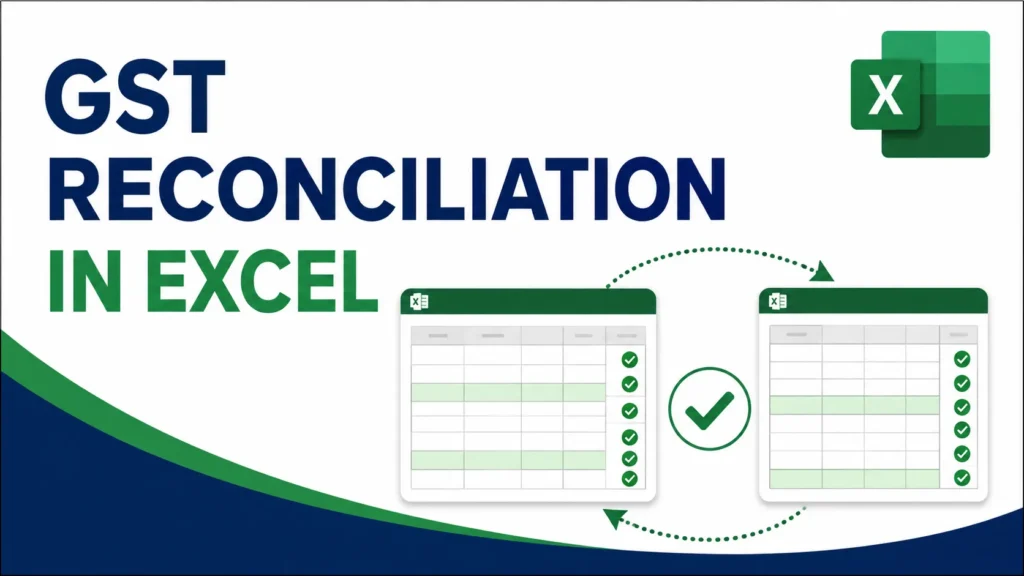
GST reconciliation in Excel means comparing your sales or purchase records against the data filed on the GST portal (GSTR-1, GSTR-2A, GSTR-2B, GSTR-3B) using formulas like XLOOKUP, SUMIFS, and IF to spot mismatches. The goal is to confirm that what you’ve recorded in your books matches what’s actually been reported to the tax department.
Page Contents
What Is GST Reconciliation and Why It Matters
GST reco, as it’s often called by accountants, is the process of matching two sets of numbers: what your business recorded internally, and what’s showing up on the GST portal.
There are a few different reconciliations businesses typically run:
- Purchase Register vs GSTR-2A/2B: Confirms the input tax credit (ITC) you’re claiming actually matches what your suppliers have reported.
- Sales Register vs GSTR-1: Confirms your outward supplies are correctly reflected in your filed returns.
- GSTR-1 vs GSTR-3B: Checks that the summary return matches the detailed invoice-level data you filed.
- GSTR-2B vs GSTR-3B: Confirms the ITC you actually claimed matches the eligible credit shown by the system.
Skipping this isn’t just risky from a bookkeeping standpoint. Mismatches can lead to denied ITC claims, notices from the department, or having to pay extra tax you didn’t actually owe. Doing this in Excel, rather than manually cross-checking line by line, is what makes it manageable even with a few hundred invoices a month.
GST Reconciliation Format in Excel: How to Set Up Your Sheet
Before running any formulas, both datasets need to be structured the same way so Excel can actually compare them.
- Export or download your GSTR-2A/2B (or GSTR-1) from the GST portal in Excel format.
- Export your purchase register or sales register from your accounting software (Tally, Zoho Books, or similar).
- Place both datasets in the same workbook, on separate sheets, for example “Books” and “Portal Data.”
- Make sure both sheets have matching column headers: GSTIN, Invoice Number, Invoice Date, Taxable Value, and GST Amount.
Keeping the column structure identical across both sheets is what makes the lookup formulas in the next step actually work. If one sheet has “Invoice No.” and the other has “Bill Number,” rename them to match before doing anything else.
Free GST Reconciliation Template (Excel)
Rather than building this from scratch, you can start with a ready-made workbook that already has the reconciliation key, matching formulas, and status columns set up. It includes a Purchase Register vs GSTR-2B sheet, a Sales Register vs GSTR-1 sheet, a GSTR-1 vs GSTR-3B monthly summary, and a live Summary Dashboard that pulls counts and totals from all three automatically.
Yellow cells are the only ones you need to fill in with your own data. Everything else, including the Matched, Mismatch, and Missing status columns, updates automatically as you paste in new rows.
How to Do GST Reconciliation in Excel: Step-by-Step
Step 1: Create a reconciliation key
Invoice numbers rarely match exactly between your books and the portal data. A supplier might file “INV-1001” while your records show “INV1001.” To avoid formulas failing over formatting differences, combine GSTIN and invoice number into a single key with the formatting stripped out.
=A2&SUBSTITUTE(B2,"-","")
Where A2 is GSTIN and B2 is the invoice number. Apply this same formula in both sheets so both datasets get a matching key column.
Step 2: Match invoices using XLOOKUP
Once both sheets have a reconciliation key, use XLOOKUP to check whether each invoice from your books appears in the portal data.
=IFERROR(XLOOKUP(E2,PortalData!$J:$J,PortalData!$J:$J),"Missing")
Here, E2 is your book’s reconciliation key, and column J on the portal sheet holds the same key. Wrapping it in IFERROR replaces the usual #N/A error with a plain “Missing” label, which is easier to scan and filter later.
Step 3: Flag mismatches in tax values
Even when an invoice is present in both datasets, the amounts might not match. This formula checks for a variance and labels it clearly.
=IF(ABS(BookValue-PortalValue)>0,"Mismatch","Matched")
ABS is used here because it doesn’t matter whether your value is higher or lower than the portal’s, either way it’s a mismatch that needs a closer look.
Step 4: Total up amounts by supplier
Rather than reviewing every invoice individually, it often helps to see totals per supplier first, then drill down only where something looks off.
=SUMIFS(GSTAmountColumn,SupplierColumn,"ABC Ltd")
This gives you the total GST amount recorded for a specific supplier, which you can then compare against the same supplier’s total in the portal data.
Step 5: Count how many mismatches you’re dealing with
Before diving into every flagged row, get a sense of scale using COUNTIFS.
=COUNTIFS(StatusColumn,"Mismatch")
Add a second condition to focus on the mismatches worth prioritizing first, for example ones above a certain value:
=COUNTIFS(StatusColumn,"Mismatch",AmountColumn,">50000")
Step 6: Standardize invoice dates
Date formatting inconsistencies (01/06/2026 vs 1-Jun-26) can silently break comparisons even when the underlying date is correct. Use TEXT to bring both sheets to the same format before comparing.
=TEXT(A2,"dd-mm-yyyy")
Step 7: Review, categorize, and act on discrepancies
Once the formulas are in place, go through the flagged rows and sort them into a few categories:
- Invoice missing from GSTR-2A/2B (supplier hasn’t filed yet, follow up).
- Invoice in GSTR-2A/2B but not in your books (credit you’re likely missing out on).
- Value mismatch (check for data entry errors on either side).
- GSTIN mismatch (usually a typo, worth a quick manual check).
Document what you find and what action was taken. This becomes your audit trail if the reconciliation is ever questioned later.
Common Types of Mismatches You’ll Run Into
Timing differences. A supplier files their return a month later than you record the purchase, so the invoice temporarily doesn’t show up in your reconciliation. This usually resolves itself the following month.
Non-filing by supplier. If a supplier hasn’t filed their GSTR-1 at all, the invoice won’t appear in your GSTR-2A/2B, and the ITC isn’t available to claim until they do. This is worth flagging early so you can follow up directly.
Value or GSTIN errors. A supplier might report a different amount than what’s on your invoice, or make a typo in your GSTIN. These need manual correction, either by contacting the supplier or adjusting your own records.
Rounding differences. Small paisa-level mismatches from rounding shouldn’t be treated the same as genuine discrepancies. It’s worth setting a small tolerance threshold (like ₹1) in your mismatch formula so these don’t clutter your review list.
GSTR-1 vs GSTR-3B Reconciliation
This is a slightly different check from the ITC-side reconciliation above. Here, you’re comparing the detailed invoice-level data in GSTR-1 against the summary figures reported in GSTR-3B for the same period.
- Pull total taxable value and total tax from GSTR-1 for the period.
- Pull the outward supply figures reported in GSTR-3B for the same period.
- Compare the two totals using a simple variance formula:
=GSTR1_Total-GSTR3B_Total. - If GSTR-1 shows more than GSTR-3B, you’ve likely under-reported liability and may owe additional tax. If it’s the reverse, you may be able to adjust or claim a refund in a later period.
Frequently Asked Questions
How do I do GST reconciliation in Excel step by step?
Export your books data and portal data (GSTR-1, 2A, 2B, or 3B) into the same workbook, create a matching reconciliation key on both sheets, then use XLOOKUP and IF/ABS formulas to flag missing invoices and value mismatches.
What is the GST reconciliation format in Excel?
It’s typically a two-sheet (or more) workbook with columns for GSTIN, Invoice Number, Invoice Date, Taxable Value, and GST Amount, structured identically across both the books data and the portal data so they can be compared directly.
Which Excel formulas are best for GST reconciliation?
XLOOKUP (or VLOOKUP) for matching invoices, IFERROR for cleaner error handling, IF combined with ABS for flagging value mismatches, SUMIFS for supplier-wise totals, and COUNTIFS for counting exceptions.
What is the difference between GSTR-2A and GSTR-2B for reconciliation purposes?
GSTR-2A updates dynamically as suppliers file their returns, while GSTR-2B is a static, month-wise snapshot generated once and meant specifically for ITC reconciliation. Most businesses reconcile against GSTR-2B since it doesn’t keep changing mid-review.
Why doesn’t my invoice number match between my books and the GST portal?
This usually comes down to formatting differences, like hyphens, spaces, or leading zeros. Building a reconciliation key that strips out formatting characters before comparing (rather than matching on the raw invoice number) fixes most of these false mismatches.
Can I do GST reconciliation in Excel for free?
Yes. The formulas covered here (XLOOKUP, SUMIFS, IF, ABS) work in any standard version of Excel with no add-ons or paid tools required. You can also use the free downloadable template above, which already has the matching formulas and status columns built in.
How often should GST reconciliation be done?
Monthly is standard practice for most businesses, especially before filing GSTR-3B, so ITC claims and outward supply figures are confirmed accurate before the return is submitted.
This article is for informational purposes only and is not investment or tax advice. Consult a qualified professional for decisions specific to your situation.