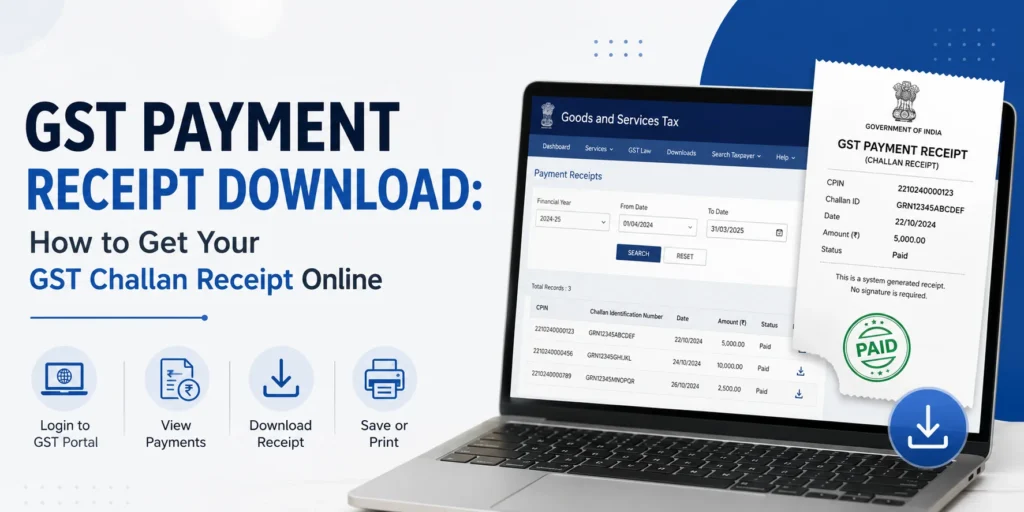
You can download your GST payment receipt from the GST portal under Services > Payments > Challan History (if logged in) or Track Payment Status (if not logged in). Once you locate the paid challan by its CPIN, you just click Download or View Receipt to save it as a PDF.
Page Contents
GST Challan vs GST Payment Receipt: What’s the Difference
People often use “challan” and “receipt” interchangeably, but on the GST portal they mean two different things at two different stages.
- GST Challan (Form PMT-06): This is generated before you pay. It shows the amount you owe under CGST, SGST, IGST, or cess, along with a CPIN (Common Portal Identification Number). You need this to actually make the payment, whether online or at a bank counter.
- GST Payment Receipt: This is generated after the payment is successful. It confirms the money has reached the government and reflects in your Electronic Cash Ledger. This is the document you need for audits, GSTR-3B reconciliation, and proof of compliance.
Both documents are downloaded from the same section of the portal, which is why the two searches often get mixed up. If your payment status still shows “Not Paid,” you’ll only be able to download the challan, not the receipt.
How to Download the GST Payment Receipt (Logged-In Users)
If you’re a registered taxpayer with portal access, this is the fastest route.
- Go to the GST portal at gst.gov.in and log in with your username and password.
- Click Services > Payments > Challan History.
- The portal shows your last 10 challans by default, sorted by date. You can filter by date range or search directly by CPIN.
- Click on the CPIN of the challan you want. This opens the challan and payment status.
- If the status reads PAID, a DOWNLOAD button appears. Click it to save the receipt as a PDF.
Keep in mind that the receipt option only appears once a payment is marked PAID. If the challan shows any other status, you’ll see the challan itself but not a payment receipt, because the payment hasn’t been confirmed yet.
GST Challan Download for Unregistered Users or Without Login
You don’t need portal credentials to check a payment or pull a receipt, as long as you have the GSTIN and CPIN handy.
- Visit gst.gov.in without logging in.
- Click Services > Payments > Track Payment Status.
- Enter the GSTIN (or other applicable ID) and the CPIN of the challan.
- Type the captcha code shown and click TRACK STATUS.
- If the status is PAID, a VIEW RECEIPT button becomes active. Click it, then hit DOWNLOAD to save the PDF.
- If the status is anything other than PAID, you’ll only get a VIEW CHALLAN option, which lets you view or reattempt the payment, not download a receipt.
This route is useful if you made a payment on someone else’s behalf, or if you don’t have login access but still need the paperwork for your own records.
Understanding GST Payment Status Before You Download
The status field on the Track Payment Status page tells you exactly why a download button is or isn’t available.
Common status types
- PAID: Payment confirmed, receipt is downloadable.
- NOT PAID: Challan generated but payment hasn’t gone through yet.
- Awaiting Bank Confirmation: For e-payments where the bank hasn’t yet sent final approval back to the GST system.
- Awaiting Bank Clearance: For over-the-counter payments where the bank has acknowledged the challan but hasn’t confirmed the remittance.
If your status is stuck on either of the “Awaiting” states for more than a few hours, it usually resolves on its own once the bank pushes confirmation through. If money has already left your account and the status still hasn’t updated after a reasonable wait, you can raise a grievance through Services > Payments > Grievance against Payment (GST PMT-07).
Downloading Multiple GST Receipts at Once
If you need several receipts together, say for a quarter’s worth of GST payments during an audit, downloading each one individually is slow. There’s a shortcut most taxpayers miss.
- Log in and go to Services > Payments > Challan History.
- Set the date range you need using the calendar filters.
- Click DOWNLOAD AS CSV.
This gives you a spreadsheet listing every challan in that period, including CPIN, amount, mode of payment, and status. It won’t give you the individual PDF receipts, but it’s a quick way to cross-check which payments were made before pulling the specific PDFs you need.
GST Challan Validity and Why It Matters for Downloads
A generated challan is valid for 15 days from the date of creation. If you don’t complete the payment within that window, the challan expires and can’t be used, even if a bank somehow processes it later.
This matters for downloads because an expired challan will never move to PAID status, so no receipt will ever generate for it. If your challan has expired, the fix is to create a fresh one rather than trying to reuse the old CPIN.
What Information the GST Payment Receipt Contains
The downloaded PDF isn’t just a confirmation slip. It includes details you’ll actually need for accounting and filing:
- CPIN and the corresponding Challan Identification Number (CIN) once paid.
- GSTIN of the taxpayer.
- Breakup of amount paid under CGST, SGST, IGST, and cess.
- Mode of payment used (net banking, NEFT/RTGS, UPI, or over the counter).
- Bank reference number and date of payment.
This breakup is what your accountant or auditor will cross-check against your Electronic Cash Ledger and GSTR-3B entries, so it’s worth confirming these figures match your books before filing.
Why You Should Keep the Receipt on File
The GST portal retains challan history, but relying on the portal alone isn’t a great habit for long-term recordkeeping.
- Tax authorities can ask for payment proof during scrutiny or audit, sometimes years after the transaction.
- Input Tax Credit reconciliation is easier when you have receipts organised outside the portal.
- If there’s ever a dispute over whether a payment was made on time, the receipt with its timestamp is your primary evidence.
A simple habit is downloading the receipt right after each payment clears and saving it in a folder by month, rather than going back to search for it later.
FAQs
How do I download my GST payment receipt if I forgot my CPIN? Log in to the GST portal and check Challan History under Services > Payments. It lists all challans generated under your GSTIN, so you don’t need to remember the CPIN separately.
Can I download a GST challan receipt without logging in? Yes. Use Track Payment Status under Services > Payments on the GST portal homepage, and enter your GSTIN and CPIN to pull up the receipt.
Why does my GST challan not show a download option for the receipt? The receipt only becomes downloadable once the payment status changes to PAID. If it shows Not Paid or Awaiting Bank Confirmation/Clearance, you’ll only see the challan, not a receipt.
What is the difference between a GST challan and a GST payment receipt? A challan (Form PMT-06) is generated before payment and states the amount due. A receipt is generated after successful payment and confirms the money has been credited to your Electronic Cash Ledger.
How long is a GST challan valid before it expires? A generated challan is valid for 15 days. After that, it expires and you’ll need to create a new one to make the payment.
Can I download multiple GST receipts together? You can download a CSV summary of all challans in a date range from Challan History, but individual PDF receipts still need to be downloaded one at a time.
This article is for informational purposes only and is not investment or tax advice. Consult a qualified professional for decisions specific to your situation.