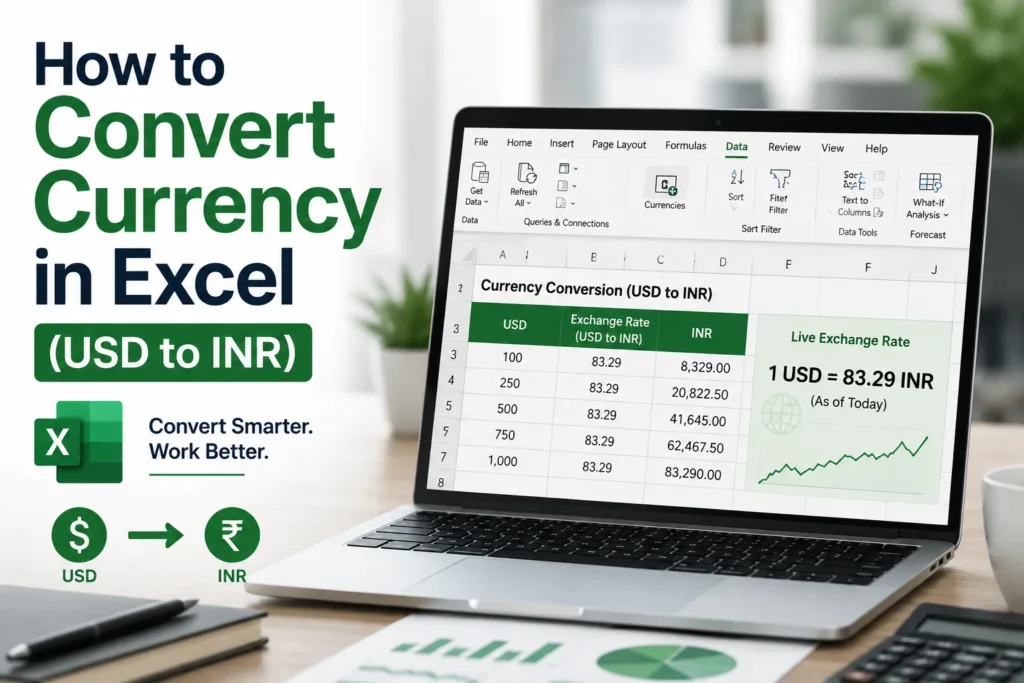
Converting currency in Excel comes down to one basic operation — multiplying or dividing by an exchange rate — but the right method depends on whether you’re converting a handful of values once, looking up rates for several currencies at once, or need the rate to stay current without manual updates. This guide covers all three, for both USD → INR and INR → USD, since most people working with Indian financial data need to go in either direction depending on whether they’re pricing an import or an export.
Page Contents
In This Guide
- Simple formula conversion (fixed rate)
- Converting INR to USD (the reverse direction)
- Looking up rates for multiple currencies with VLOOKUP and INDEX-MATCH
- Live exchange rates using the Currencies data type (Excel 365)
- Live rates via Power Query / Web Query
- The WEBSERVICE and FILTERXML functions
- Common mistakes and fixes
- FAQs
Simple Formula Conversion (Fixed Rate)
This is the right method when you have a single exchange rate to apply — say, converting a list of USD prices to INR at today’s rate for a one-off report.
- Enter your USD amounts in column A.
- Enter the exchange rate in a fixed cell — say C2 (for example, 1 USD = 83.20 INR).
- In column B, enter:
=A2*$C$2 - Drag the formula down the column. The $ signs lock the reference to C2, so every row uses the same rate instead of shifting to an empty cell as you copy down.
This works well for a static snapshot but the rate has to be updated manually each time it changes — fine for historical or one-time conversions, not for anything you’ll revisit regularly.
Converting INR to USD (the Reverse Direction)
The same logic applies in reverse, but note that it’s division, not multiplication, since the rate is expressed as INR per USD.
- Enter your INR amounts in column A.
- Enter the USD/INR exchange rate in a fixed cell, say C2.
- In column B, enter:
=A2/$C$2
This is the formula to use when converting export invoice values, rupee price lists, or INR revenue figures back into dollars — the direction most tutorials skip, since they only cover USD → INR.
Converting Multiple Currencies with a Lookup Table
If you’re converting to more than one currency — say some rows need EUR, others GBP, others INR — a single fixed-rate formula won’t work. Instead, build a small rate table and look up the correct rate for each row.
Set up a rate table somewhere on the sheet, for example in columns H:I:
| Currency | Rate (per USD) |
| INR | 83.20 |
| EUR | 0.92 |
| GBP | 0.79 |
If column A has the USD amount and column B has the target currency code, use VLOOKUP in column C:
=A2*VLOOKUP(B2,$H$2:$I$4,2,FALSE)
This looks up the currency code in B2 against the rate table, pulls the matching rate, and multiplies it by the amount. The FALSE argument forces an exact match — leaving this out (or using TRUE) can silently return the wrong rate if the currency codes aren’t sorted.
INDEX-MATCH does the same job and is worth using instead of VLOOKUP if you ever insert a column into the rate table, since VLOOKUP’s column-number argument breaks when columns shift but INDEX-MATCH doesn’t:
=A2*INDEX($I$2:$I$4,MATCH(B2,$H$2:$H$4,0))
Live Exchange Rates Using the Currencies Data Type (Excel 365)
If you have Microsoft 365, Excel can fetch live currency rates directly without any external setup, using the built-in Currencies data type.
- In a column, enter currency pairs in the format USD/INR (or whichever pair you need).
- Select the cells, go to Data > Currencies. Excel will recognise the pair and convert it into a linked data type (you’ll see a small icon appear in the cell).
- With the cells still selected, click the Insert Data icon (or Add Column) that appears, and choose Price to add a column showing the current exchange rate.
- Use this rate column in a normal multiplication formula against your amount column, the same way as the fixed-rate method above.
To refresh the rate, go to Data > Refresh All. This is the most reliable “live rate” method for anyone on Microsoft 365, since it doesn’t depend on external websites or API keys that may change or require registration.
Live Rates via Power Query (Older Excel Versions)
If you don’t have Microsoft 365, Power Query can pull a rate table from a public exchange-rate page.
- Go to Data > Get Data > From Web.
- Paste the URL of a rates page that publishes a plain HTML table (many currency-conversion sites offer this).
- In the Navigator window, select the correct table and click Transform Data.
- Once loaded, use Close & Load To and choose a location in your existing worksheet.
- Reference the loaded rate with VLOOKUP, the same way as the manual rate table above.
Click Data > Refresh All whenever you need updated rates. Note that this depends on the source site’s table structure staying the same — if the site redesigns its page, the query may need to be rebuilt.
WEBSERVICE and FILTERXML (Advanced, Optional)
Excel 2013 and later include WEBSERVICE, which retrieves data from a URL, and FILTERXML, which extracts a specific value from the result. Combined, they can pull a single exchange rate directly into a formula:
=FILTERXML(WEBSERVICE("https://api.example.com/latest?base=USD&symbols=INR"), "//INR")
This only works with an API that returns XML in a predictable structure, and most free currency APIs return JSON instead, which FILTERXML can’t parse directly — so this method usually needs an XML-specific data source or a paid API plan. For most users, the Currencies data type or Power Query methods above are more dependable and don’t require finding a compatible API.
Common Mistakes and Fixes
Formula Returns the Wrong Value When Copied Down
This almost always means the rate cell reference wasn’t locked with $. Add the dollar signs (e.g., $C$2) so the reference stays fixed as the formula is copied to other rows.
VLOOKUP Returns #N/A
Usually a mismatch between the currency code in your data and the one in the rate table — extra spaces or inconsistent capitalisation are the most common cause. Wrapping the lookup value in TRIM() often resolves this.
Currencies Data Type Isn’t Recognising the Pair
Check the format is exactly XXX/YYY (e.g., USD/INR) with no extra characters, and confirm you’re on a Microsoft 365 subscription — this feature isn’t available in one-time-purchase versions of Excel (2019, 2021, etc.).
Frequently Asked Questions
How do I convert USD to INR in Excel?
Multiply the USD amount by the exchange rate: =A2*$C$2, where C2 holds the current USD-to-INR rate.
How do I convert INR to USD?
Divide instead of multiply: =A2/$C$2, using the same USD/INR rate.
Can Excel fetch live exchange rates automatically?
Yes, if you’re on Microsoft 365, via the Currencies data type (Data > Currencies). On older versions, Power Query pulling from a rates website is the closest equivalent.
What’s the difference between VLOOKUP and INDEX-MATCH for currency lookups?
Both return the same result for a simple rate table. INDEX-MATCH is more resilient if columns in the rate table are later reordered, since VLOOKUP relies on a fixed column number that shifts when columns are inserted or deleted.
Does Excel have a built-in currency conversion function?
Not a dedicated one for live rates. The CONVERT() function handles unit conversions (weight, distance, etc.) but does not support currency, since exchange rates change constantly and aren’t built into Excel’s static conversion tables.
Just need to display ₹ or another currency symbol correctly, rather than convert between currencies? See our guide to changing currency format in Excel.