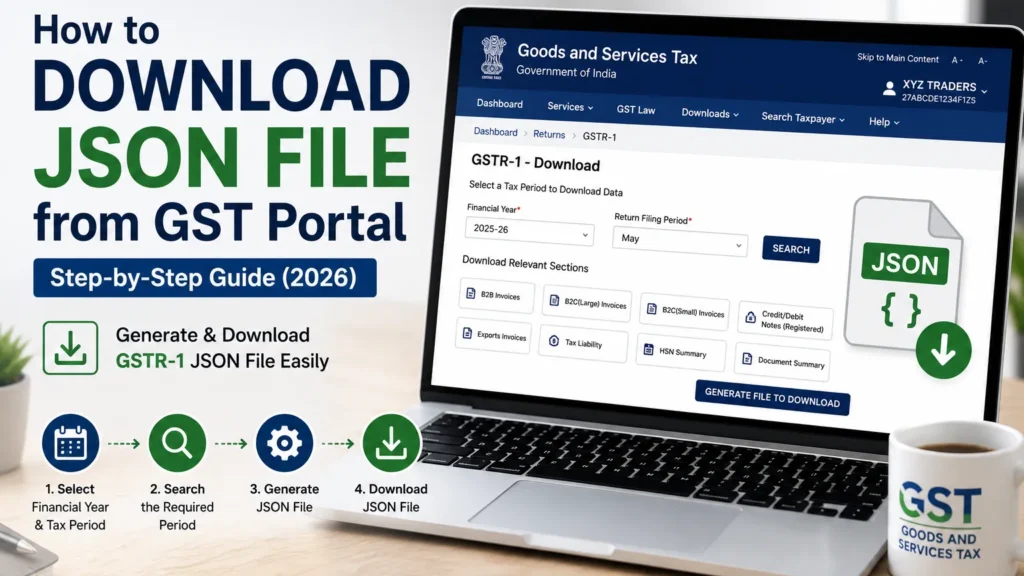
“Download JSON from GST portal” sounds like one task, but it’s actually four different ones wearing the same name. This guide walks through all four “e-Invoice, GSTR-2B, GSTR-2A and GSTR-1”, with the exact steps for most people end up wanting anyway.
Quick version, if you just want the gist: log in at gst.gov.in or einvoice.gst.gov.in with your GSTIN credentials, go to the Returns Dashboard (for GSTR-1/2A/2B) or the e-Invoice Download tile, pick your period or IRN and hit Generate JSON File to Download. That’s it in theory. In reality the button you need lives in a slightly different place depending on the document, which is the whole reason this guide exists.
Page Contents
How to Download JSON File from GST Portal – Which JSON Do You Actually Need?
- An e-Invoice (IRN) you generated or received
- GSTR-2B, the auto-drafted ITC statement
- GSTR-2A
- GSTR-1, your own sales data for filing
All four are covered below in order.
How to Download e-Invoice JSON File
This one’s for suppliers or recipients who need the signed JSON of an invoice that already has an IRN, the 64-digit Invoice Reference Number.
Log in at einvoice.gst.gov.in using your regular GST portal credentials. It won’t work in pre-login mode, so don’t bother trying to find a public download link, there isn’t one. Once you’re in, click the e-Invoice JSON Download tile on the dashboard (or Dashboard > e-Invoice Download if the tile’s moved on you, which it does after portal updates).
You’ll land on two tabs: Generated and Received. Generated is for IRNs you created as a supplier. Received is for what came in from your suppliers. The search process is identical either way.
From here you’ve got three ways to actually pull the file. Which one you use depends on how much you already know.
If you have the IRN itself, use the By IRN tab. Paste in the 64-digit number, or if you don’t have it handy, select the Financial Year, Document Type and Document Number instead. Hit Search, then click DOWNLOAD (JSON). Want a PDF instead? There’s a download icon under the Action column for that. One catch worth flagging: you can view both active and cancelled IRNs here, but only active ones actually let you download.
If you don’t have the IRN and need a whole month’s worth, that’s the For Period tab. This is honestly the one most people are actually looking for when they type “download e-Invoice JSON without IRN” into Google. Select the Financial Year and Month, filter by Recipient GSTIN or Supply Type if you need to narrow it down and click DOWNLOAD (JSON). It generates in the background. Watch the Download History table below and click the refresh icon if it’s still processing. Once it’s ready, the file shows up as a hyperlink under Download File.
If you just need a list, not the invoice data itself, use List of IRNs. Same period selection, but this spits out an Excel file listing every IRN (active and cancelled) rather than the signed JSON.
A few limits that trip people up:
The JSON is only available for six months from the IRN generation date. After that it’s simply gone from this facility, no exceptions. Files sitting in Download History expire after two days too, so if you generate it and forget about it over the weekend, you’re regenerating it Monday. And if your GST registration got cancelled, you can still pull JSON files, but only for the window your registration was actually active.
How to Download GSTR-2B JSON File
GSTR-2B is the auto-drafted ITC statement, pulled together from what your suppliers reported in their GSTR-1, IFF, 1A, and GSTR-5/6 filings.
Log in at gst.gov.in and go to Services > Returns > Returns Dashboard. Pick your Financial Year, Quarter, and Month, click SEARCH, and the Form GSTR-2B tile shows up.
Click DOWNLOAD on that tile. You’ll land on the download page with two buttons: GENERATE JSON FILE TO DOWNLOAD (this is the one you want if you’re planning to load the data into the Offline Matching Tool) and GENERATE EXCEL FILE TO DOWNLOAD, which does what it sounds like.
Here’s the part almost nobody mentions: if your GSTR-2B has more than 1,000 documents across all its tables, the portal simply won’t show you the records online. You have to use this download page, or the advanced search. Under 1,000 records and you can skip all this and just click VIEW on the tile instead.
There’s also a lighter summary option. From the GSTR-2B Summary screen, DOWNLOAD GSTR-2B SUMMARY (PDF) or DOWNLOAD GSTR-2B SUMMARY (EXCEL) gives you the summary plus table details without the full JSON payload. The Excel button greys itself out automatically once you cross that 1,000-document line, so don’t be surprised if it’s suddenly unclickable one month and fine the next.
How to Download GSTR-2A JSON File
Same neighborhood as GSTR-2B, since both sit under the Returns Dashboard. Services > Returns > Returns Dashboard, select your Financial Year and Return Filing Period, hit SEARCH. Click Download on the GSTR-2A tile, then Generate JSON File to Download.
The difference between the two trips people up constantly, so here’s the short version: GSTR-2A shows supplier data as originally reported, before any reconciliation. GSTR-2B is the cleaned-up, auto-drafted version you actually use for claiming ITC. If a supplier amends an invoice mid-month, you’ll see it differently in each.
How to Download GSTR-1 JSON File
GSTR-1 is different from the other three. You’re not downloading someone else’s data, you’re generating JSON out of your own outward supply records so you can file the return. There’s no single portal button for this. Two routes, depending on where your data already lives.
If you’re using billing software like Refrens, myBillBook, Fresa, BUSY, or Tally, most of them have a Download as JSON button sitting right in the sales/invoice report screen. Open the GSTR-1 report, find the button (usually top right), click it, done. No manual data entry, no offline tool. If your invoicing already happens in one of these, this is the route, full stop.
If your data is in Excel or CSV and needs converting, you’ll want the GST Offline Utility Tool. Download it from the official GST portal, open it, and under “Upload New Invoice/other data for return,” click New. Fill in the GST Statement type, GSTIN of Supplier, Financial Year, and Tax Period, then Proceed. Confirm the pop-up.
Now click Import Files, then Import Excel to bring your whole report in at once (you can do it section by section too, but that’s slower for no real benefit). If some rows have errors, the tool flags exactly which documents failed and why, everything else goes through fine. Fix just the flagged ones and re-upload them, you don’t need to redo the whole file.
Once everything’s imported, click View Summary, then Generate File. Click the link that appears and your GSTR-1 JSON downloads.
From there, uploading is the easy part: gst.gov.in, Services > Returns, pick your Financial Year and Period, open the GSTR-1 dashboard, select Upload JSON, choose your file, upload.
Here’s the honest take: if you’re filing more than a handful of invoices a month, billing software beats the Offline Utility Tool every time. The Excel import step is where most filing delays actually happen, not the portal upload itself.
Common Errors, and Why They Happen
| Issue | Likely Cause | Fix |
|---|---|---|
| “IRN not found” when searching | IRN is older than 6 months | It’s not retained past that window. Nothing to fix, it’s simply not downloadable anymore |
| File’s missing from Download History | More than 2 days passed since generation | Regenerate it. There’s no extended storage option |
| GSTR-2B document table won’t load | Over 1,000 documents | Use the download page or Advance Search instead of expecting the online view to work |
| Excel import in Offline Utility throws errors | Formatting mismatches on specific rows | Read the warning message, it names the exact documents that failed. Only re-upload those |
| GSTR-2B summary Excel button greyed out | Over 1,000 total documents | Same fix as above, go to the dedicated download page |
Also Read –
FAQs
Can I download JSON files without an IRN? Yes. Use the By IRN tab, but instead of the IRN itself, select Financial Year, Document Type, and Document Number.
Can I get the JSON in PDF or Excel instead? Depends where you’re pulling it from. e-Invoices let you pick PDF right at the download step. GSTR-2B gives you separate JSON and Excel buttons. GSTR-1 in Excel is usually easier through your billing software’s report screen than through the portal.
Who can download e-Invoice JSON files? Any registered taxpayer, supplier or recipient, with an active GSTIN and login. And yes, even if your registration’s been cancelled since, you can still pull JSON for the period you were active.
How long is e-Invoice JSON available for download? Six months from the IRN generation date. Set a reminder if you’re going to need older invoices, because there’s no exception process for this.
Why can’t I see all my GSTR-2B documents on screen? Portal cap. Over 1,000 documents across all tables and it stops showing them online, full stop, you go to the download page.
Is there an API way to download e-Invoice JSON? Yes, through GSP/ASP using G2B APIs, but you’ll need to authenticate separately from your regular portal login. Worth it if you’re pulling data programmatically at scale, overkill for a one-off download.
Is the GST Offline Utility Tool actually necessary, or can I skip it? Honestly, skip it if you can. It’s the single most complained-about step in this whole process, mostly because of how unforgiving the Excel import is about formatting. If your invoicing software has a direct JSON export, use that instead and save yourself the headache.
The GST portal was never built around one clean “download JSON” button. It’s four or five different buttons scattered across different sections, and which one applies to you depends entirely on what document you’re after. e-Invoice Download for IRNs, Returns Dashboard for GSTR-2B and 2A, billing software or the Offline Utility for GSTR-1. Once you know which bucket you’re in, the actual download takes about two minutes. Getting to the right bucket is the part that wastes everyone’s afternoon.