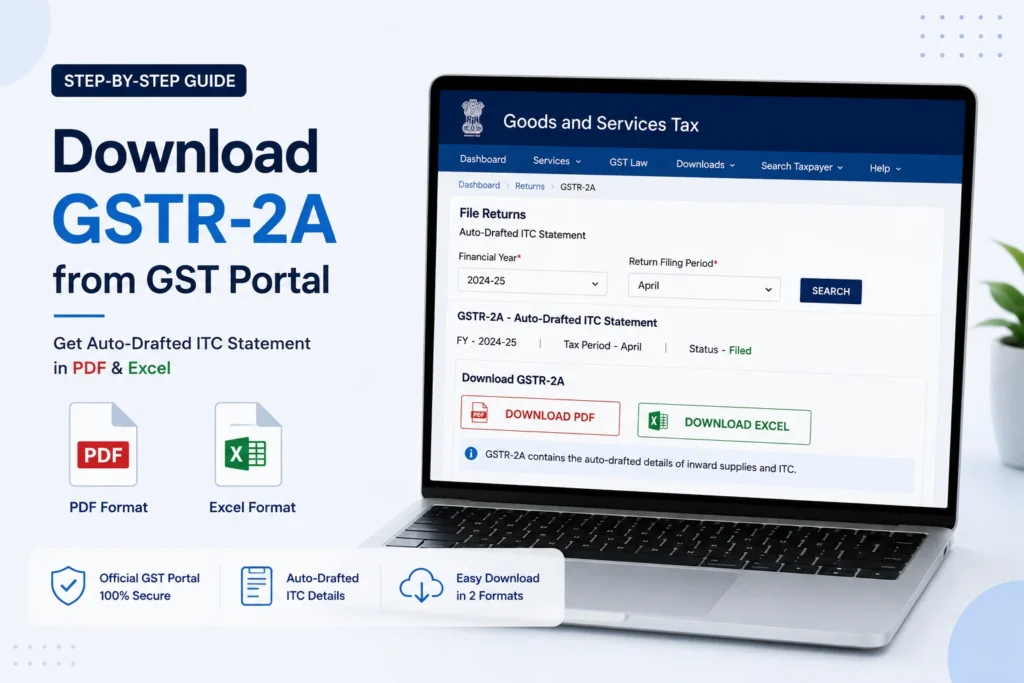
To download GSTR-2A from GST portal, log in, go to Services > Returns > Returns Dashboard, select the financial year and month, and click Download under the “Auto Drafted Details (For view only) GSTR-2A” section. Choose either Excel or JSON format, and note the file can take up to 20 minutes to generate.
Page Contents
What Is GSTR-2A and Why It’s Different from Other Returns
GSTR-2A isn’t something you file. It’s a read-only, auto-generated statement that shows your inward supplies (purchases) based entirely on what your suppliers have reported in their own GSTR-1, GSTR-5, and GSTR-6 filings.
Because it pulls from your suppliers’ filings rather than your own, GSTR-2A updates dynamically. If a supplier amends an invoice next month, your GSTR-2A for the earlier period changes too, which is exactly why the government introduced GSTR-2B as a static alternative for ITC reporting purposes.
People download GSTR-2A mainly for one reason: to reconcile it against their own purchase records and confirm the input tax credit (ITC) they’re claiming is actually supported by what suppliers have filed. A GSTR-2A download is typically done monthly, right alongside your regular purchase reconciliation routine.
How to Download GSTR-2A from the GST Portal (Step-by-Step)
Step 1: Log in to the GST portal
Go to www.gst.gov.in and log in with your credentials.
Step 2: Open the Returns Dashboard
Click Services > Returns > Returns Dashboard.
Step 3: Select the financial year and month
Choose the applicable Financial Year and Return Filing Period (month). Click Search.
Step 4: Find the GSTR-2A section
Locate the tile labeled Auto Drafted Details (For view only) GSTR-2A and click Download.
Step 5: Choose your format
You’ll see two options:
- Generate Excel file to download
- Generate JSON file to download
Click whichever format you need. The portal takes roughly 20 minutes to generate the file, after which a download link appears on the same screen.
Step 6: Download and extract
Once ready, click the link to download a ZIP file. Extract it to access the Excel or JSON contents. If you have a large number of invoices, the data may be split across multiple files inside the ZIP.
Viewing GSTR-2A Without Downloading
If you just want to look at the details rather than save a file, click View instead of Download on the same tile. This shows the auto-drafted data broken into sections:
- Part A: B2B invoices, amendments, and credit/debit notes from your suppliers’ GSTR-1 or GSTR-5.
- Part B: ISD credits from suppliers’ GSTR-6 filings.
- Part C: TDS and TCS credits from GSTR-7 and GSTR-8 filers.
- Part D: Details of imported goods, sourced from the ICEGATE customs portal.
Clicking on a GSTIN within any of these sections drills down into that specific supplier’s invoice-level detail.
The 500-Invoice Rule
There’s a practical detail that trips a lot of people up: if your GSTR-2A for a given month has fewer than 500 invoices, you can generally view the details directly without needing a separate download. Once the invoice count crosses 500, downloading (rather than just viewing) becomes the more reliable way to review the data, since the on-screen view can become unwieldy at that volume.
GSTR-2A vs GSTR-2B: Which One Should You Download?
This distinction matters enough that it’s worth pausing on before you reconcile anything.
| GSTR-2A | GSTR-2B | |
|---|---|---|
| Nature | Dynamic, changes as suppliers file or amend | Static, fixed once generated |
| Update frequency | Real-time | Once a month, on a fixed date |
| Use for ITC claims | Reference only | This is what you should use for ITC reporting in GSTR-3B |
| Best for | Reconciliation, supplier compliance tracking | Final ITC determination |
If your goal is claiming the correct ITC in GSTR-3B, GSTR-2B is the return to rely on. GSTR-2A is still useful, particularly for identifying TDS/TCS credits it captures that GSTR-2B doesn’t, and for tracking down suppliers who haven’t filed on time.
How to Download GSTR-2A for a Full Financial Year
There’s no single button on the portal to pull an entire year’s GSTR-2A at once. To get annual data:
- Download each month’s GSTR-2A individually using the steps above.
- Combine the monthly files into one spreadsheet for annual reconciliation.
Some GST reconciliation software offers a multi-month or PAN-level download feature that automates this by logging into the portal and pulling each month in sequence, useful if you’re doing this reconciliation regularly across many GSTINs.
Common Issues When Downloading GSTR-2A
File generation taking longer than expected. Twenty minutes is the norm, not an error. If it’s taking meaningfully longer, especially with a high invoice count, give it more time before assuming something’s failed.
Data doesn’t match your purchase register. This usually isn’t a download problem, it’s a timing difference. If a supplier files late, their invoice won’t appear in your GSTR-2A until the period they actually file it in.
Split files in the downloaded ZIP. With a high invoice volume, the portal splits data across multiple files rather than one. This is expected behavior, not a corrupted download, just make sure to check for and account for all the files in the ZIP.
Frequently Asked Questions
How do I download GSTR-2A from the GST portal?
Log in, go to Services > Returns > Returns Dashboard, select the financial year and month, then click Download under the GSTR-2A section and choose Excel or JSON format.
How long does it take to download GSTR-2A?
The file typically takes around 20 minutes to generate after you request it. A download link appears on the same page once it’s ready.
Should I download GSTR-2A or GSTR-2B for claiming ITC?
Use GSTR-2B for ITC reporting in GSTR-3B, since it’s the static, finalized statement meant for that purpose. GSTR-2A is better suited for ongoing reconciliation and tracking supplier compliance.
Why do I need to download GSTR-2A if it’s already viewable on the portal?
Viewing works fine for smaller invoice counts, but downloading gives you a file you can reconcile against your purchase register using formulas or accounting software, which isn’t practical to do on-screen.
How do I download GSTR-2A for an entire financial year?
Download each month individually, then compile the files into a single spreadsheet, since the portal doesn’t offer a combined full-year download.
Can I download GSTR-2A without logging in?
No. You need valid GST portal login credentials to access and download GSTR-2A, since it’s tied to your specific GSTIN.
This article is for informational purposes only and is not investment or tax advice. Consult a qualified professional for decisions specific to your situation.