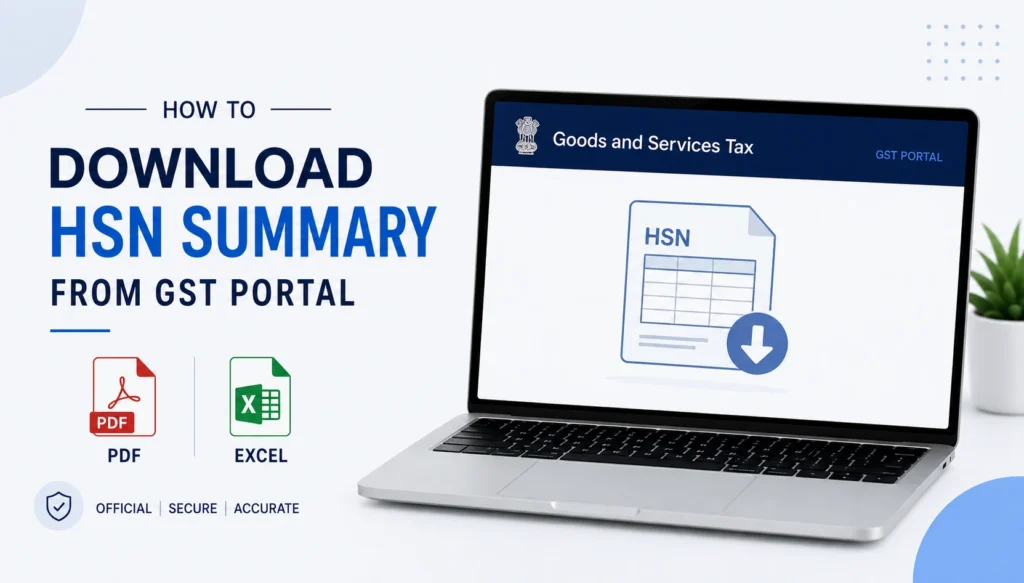
To download the HSN Summary from the GST portal, log in, go to Services > Returns > Returns Dashboard, select the financial year and period, open your GSTR-1, and navigate to the HSN-wise Summary of Outward Supplies table. From there, you can download the section using the export option on that page.
Page Contents
What Is the HSN Summary and Where It Lives
The HSN Summary isn’t a standalone return. It’s a specific table inside GSTR-1 that breaks down your outward supplies by HSN (Harmonized System of Nomenclature) code for goods, or SAC (Services Accounting Code) for services. Since it’s part of GSTR-1 rather than a separate filing, downloading it means going into your GSTR-1 and pulling out that specific section.
Businesses typically need this summary for a few reasons:
- Rate-wise reporting checks. Confirming the correct GST rate has been applied consistently across a given HSN code.
- GSTR-9 prep. The annual return has its own HSN-wise tables for both outward and inward supplies, and having your monthly summaries on hand makes compiling the annual figures easier.
- Internal product/rate audits. Businesses with a large product catalog use this to verify tax classification accuracy across SKUs.
How to Download HSN Summary from GST Portal (Step-by-Step)
Step 1: Log in to the GST portal
Go to www.gst.gov.in and log in with your credentials.
Step 2: Open the Returns Dashboard
Click Services > Returns > Returns Dashboard.
Step 3: Select the period and open GSTR-1
Choose the Financial Year and Return Filing Period, click Search, then click into the GSTR-1 tile for that period.
Step 4: Navigate to the HSN Summary table
Within GSTR-1, scroll to the HSN-wise Summary of Outward Supplies section (this is one of the standard tables in the GSTR-1 form, alongside B2B, B2C, and export details).
Step 5: Download or export the table
Use the download or export option available on that table’s page to save the HSN-wise data. Depending on the format the portal offers at the time, this may come as an Excel file or be included as part of a broader GSTR-1 Excel download.
HSN Summary Reporting Requirements to Keep in Mind
A couple of details affect what shows up in this table and how it’s structured, worth knowing before you rely on the download for compliance checks.
- HSN digit requirements vary by turnover. Businesses above certain turnover thresholds are required to report longer HSN codes (more digits) than smaller businesses. If your summary looks inconsistent with what you expected, check whether your reporting requirement changed.
- The format has changed over time. From May 2021 onwards, the HSN summary includes rate and quantitative details alongside the code itself. From May 2025 onwards, HSN-wise summaries are split separately for B2B and B2C supplies rather than combined into one table. If you’re comparing summaries across different periods, keep this structural shift in mind.
- Two-digit HSN codes have restrictions. Codes starting with 99 don’t require UQC (Unit of Quantity Code) and quantity details, since these typically cover services rather than physical goods.
Downloading HSN Summary Data for GSTR-9
If you’re pulling HSN summary data specifically to prepare your annual return, GSTR-9 has its own dedicated HSN-wise tables (Table 17 for outward supplies, Table 18 for inward supplies). Rather than manually compiling these from each month’s GSTR-1, it’s worth checking whether the auto-populated data in GSTR-9’s HSN tables already reflects what you need, since some of this can be pre-filled based on your GSTR-1 filings for the year.
How to Download HSN Summary for a Full Year
As with the other returns covered in this series, the GST portal doesn’t offer a single download for a full year of HSN summary data. To compile an annual view:
- Download the HSN summary from each month’s (or quarter’s) GSTR-1 individually.
- Combine the data into a single spreadsheet, grouping by HSN code across periods if you need a consolidated annual figure.
Common Issues When Downloading HSN Summary
Can’t find the HSN table. Since it’s nested inside GSTR-1 rather than being its own return, it’s easy to miss if you’re searching the Returns Dashboard directly for something labeled “HSN Summary.” Go into the GSTR-1 filing itself first.
Data looks different from a previous period. This is often due to format changes (like the 2025 split between B2B and B2C HSN summaries) rather than an error. Check the return period against the applicable format at that time.
Missing quantitative details for certain codes. If you’re seeing gaps for entries starting with 99, this is expected, since those don’t require UQC and quantity fields.
Frequently Asked Questions
How do I download the HSN summary from the GST portal?
Log in, go to Services > Returns > Returns Dashboard, open your GSTR-1 for the relevant period, and use the download or export option on the HSN-wise Summary of Outward Supplies table.
Is the HSN Summary a separate return I need to file?
No. It’s a table within GSTR-1, not a standalone return. You can’t file or download it independently of your GSTR-1.
Why does my HSN summary look different from a previous period?
The reporting format has changed over time, most notably splitting into separate B2B and B2C tables from May 2025 onwards. Structural differences across periods are usually a format change, not an error.
Do I need to report HSN codes for services too?
Yes. Services use SAC (Services Accounting Code) instead of HSN, and get reported in the same summary table alongside goods.
How many digits of HSN code do I need to report?
This depends on your turnover. Higher-turnover businesses are required to report more digits than smaller ones. Check the current threshold requirements on the GST portal or with your tax advisor, since these have been revised over time.
Can I download HSN summary data for GSTR-9 separately?
GSTR-9 has its own HSN-wise tables (Table 17 and Table 18) that may be partly auto-populated from your year’s GSTR-1 filings, so you often don’t need to manually compile monthly HSN summaries separately for this purpose.
This article is for informational purposes only and is not investment or tax advice. Consult a qualified professional for decisions specific to your situation.