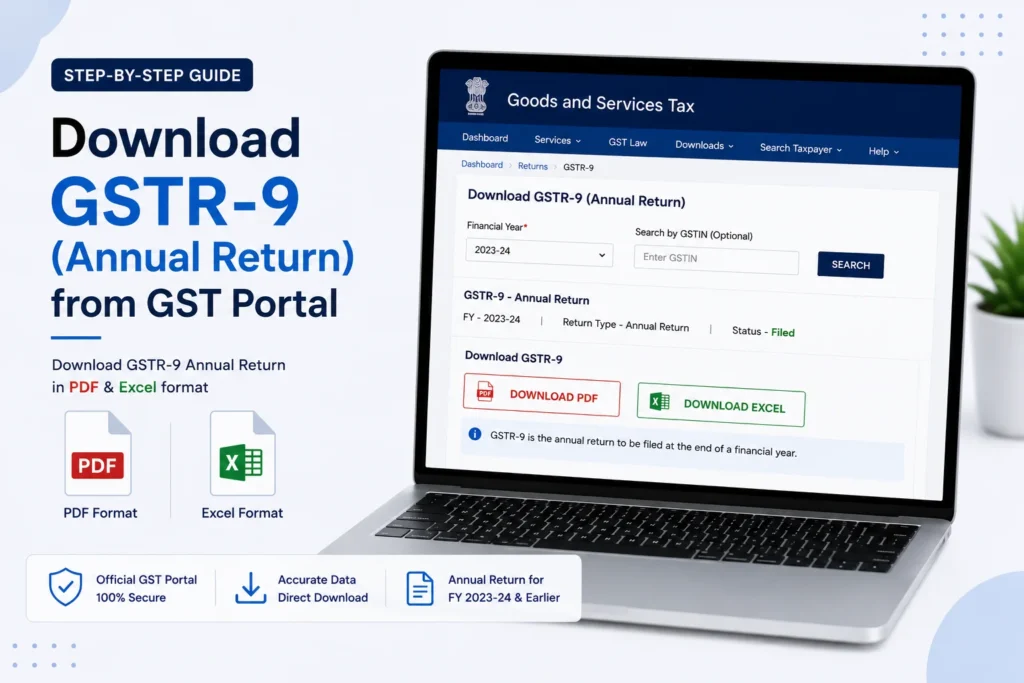
To download GSTR-9 from the GST portal, log in, go to Services > Returns > Annual Return, select the financial year, and use the download options on the GSTR-9 tile. You can download the system-computed summary before filing, or the final filed return (with acknowledgement) after it’s submitted.
Page Contents
What Is GSTR-9 and Who Needs to Download It
GSTR-9 is the annual return, filed once a year rather than monthly or quarterly. It consolidates the details you’ve already reported across the year’s GSTR-1 and GSTR-3B filings, covering outward and inward supplies, ITC availed, and tax paid for the full financial year.
It’s required for regular taxpayers, including SEZ units and SEZ developers. A few categories are exempt: casual taxpayers, non-resident taxpayers, and Input Service Distributors don’t need to file it. Composition taxpayers file GSTR-9A instead.
There are two points in the process where you might want to download something related to GSTR-9:
- Before filing, to get the system-computed summary as a reference while filling in the form.
- After filing, to save a copy of what you actually submitted.
How to Download the System-Computed GSTR-9 Summary (Before Filing)
This is the reference data the portal auto-populates based on your GSTR-1 and GSTR-3B filings for the year. It’s meant to help you fill out the annual return accurately, not to be filed as-is.
- Log in to the GST portal and go to Services > Returns > Annual Return.
- Select the relevant Financial Year and click Search.
- Click PREPARE ONLINE on the GSTR-9 tile.
- On the Annual Return page, download the reference summaries using the available buttons:
- Download GSTR-1 Summary (PDF)
- Download GSTR-3B Summary (PDF)
- Download GSTR-9 System Computed Summary (PDF)
These downloads help you cross-check the auto-populated figures in each table of GSTR-9 against your actual filings before you submit anything.
How to Download Table 8A Document Details (GSTR-2A/2B Backup)
Table 8A of GSTR-9 shows ITC as per GSTR-2A (up to FY 2022-23) or GSTR-2B (FY 2023-24 onwards). If you want the invoice-level detail behind that figure:
- From the Annual Return page, click PREPARE ONLINE on the GSTR-9 tile.
- Click DOWNLOAD TABLE 8A DOCUMENT DETAILS.
- The Excel file downloads with B2B, B2BA, CDNR, and CDNRA details (and ECO/ECOA from FY 2023-24 onwards) that were considered in computing Table 8A.
If the file size is large, the portal splits it into multiple parts to keep each download manageable.
How to Download a Filed GSTR-9 (After Submission)
Once you’ve completed and filed GSTR-9, downloading a copy works similarly to other returns:
- Log in to the GST portal and go to Services > Returns > Annual Return.
- Select the Financial Year and click Search.
- Click on the GSTR-9 tile, which will now show a status of Filed.
- Use the PREVIEW DRAFT GSTR-9 (PDF) or PREVIEW DRAFT GSTR-9 (EXCEL) option to download the filed return.
The filed copy is available in both PDF and Excel formats, and it’s worth saving both since Excel is more useful for later reconciliation while PDF is the version you’d typically hand to an auditor.
How to File GSTR-9 Offline (If You’re Preparing It That Way)
Some businesses prepare GSTR-9 offline before uploading, similar to GSTR-1 and GSTR-3B. If that’s your workflow:
- Click the Downloads tab on the GST portal.
- Go to Offline Tools > GSTR-9/GSTR-9A/GSTR-9C Offline Utility.
- Extract the downloaded ZIP file and open the Excel utility.
- Click Enable Editing, then fill in the worksheets. It’s not mandatory to complete every worksheet, only the ones relevant to your business.
- Validate the entries using the Validate button.
- Generate the JSON file and upload it to the portal under the Annual Return section.
Preconditions Before You Can File or Download GSTR-9
A few things need to be true before GSTR-9 becomes available to file (and therefore before there’s anything meaningful to download):
- You must have had an active GSTIN as a normal taxpayer for at least part of the relevant financial year.
- All applicable GSTR-1 and GSTR-3B returns for that year must already be filed. GSTR-9 cannot be filed, or meaningfully prepared, without these being complete first.
If either of these isn’t satisfied, the GSTR-9 tile on the portal won’t let you proceed to preparing or filing the return.
Frequently Asked Questions
How do I download GSTR-9 from the GST portal?
Log in, go to Services > Returns > Annual Return, select the financial year, and use the download options on the GSTR-9 tile, either the system-computed summary before filing or the filed return after submission.
Can I download GSTR-9 before filing it?
Yes. The system-computed summary, based on your year’s GSTR-1 and GSTR-3B data, is available for download as a reference before you fill in and file the actual return.
What is Table 8A document details, and how do I download it?
It’s the invoice-level backup behind the ITC figure shown in Table 8A of GSTR-9, sourced from GSTR-2A or GSTR-2B. You can download it in Excel format from the Annual Return preparation page.
Is there an offline tool for GSTR-9?
Yes. The GSTR-9/9A/9C Offline Utility is available under Downloads > Offline Tools on the GST portal, useful for preparing the return without staying continuously connected online.
Can I revise GSTR-9 after filing?
No. Once filed, GSTR-9 cannot be revised or amended.
What happens if I haven’t filed all my GSTR-1 and GSTR-3B returns for the year?
You won’t be able to file GSTR-9 until all applicable GSTR-1 and GSTR-3B returns for that financial year are filed first.
What’s the difference between GSTR-9 and GSTR-9C?
GSTR-9 is the annual return required for all regular taxpayers. GSTR-9C is a separate reconciliation statement required for taxpayers above a certain turnover threshold, and it needs to be certified alongside audited financial statements.
This article is for informational purposes only and is not investment or tax advice. Consult a qualified professional for decisions specific to your situation.