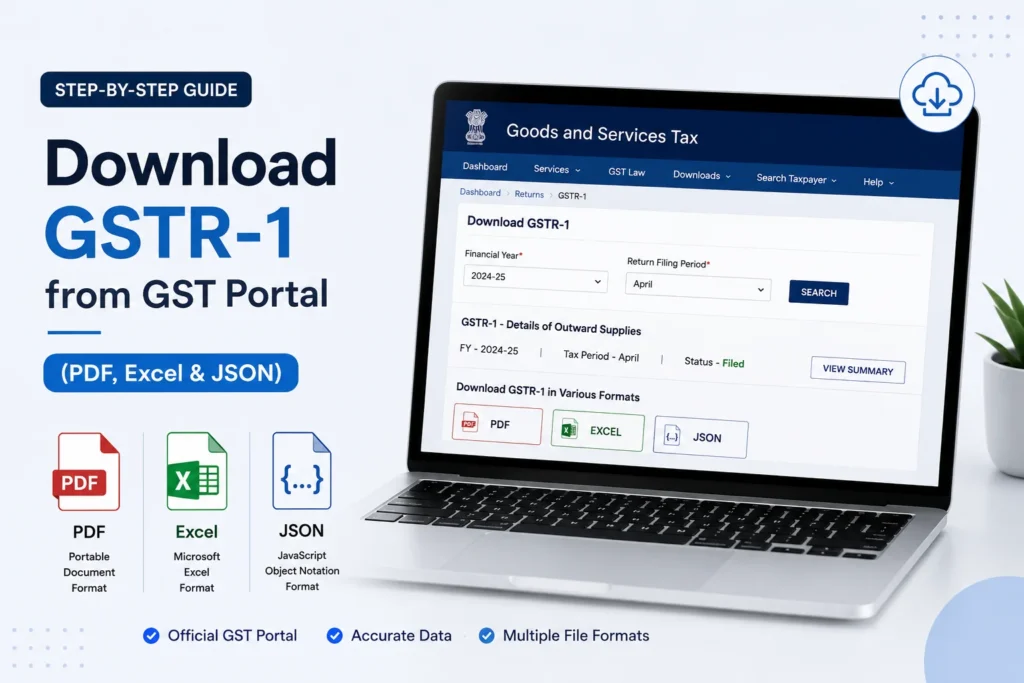
To download GSTR-1 from the GST portal, log in, go to Services > Returns > Returns Dashboard, select the financial year and period, and download the filed return in PDF or Excel format from the GSTR-1 tile. If you need it in JSON for offline preparation instead, use the “Prepare Offline” option and generate the file from there.
Page Contents
What Is GSTR-1 and Why You’d Need to Download It
GSTR-1 is the return that reports your outward supplies, meaning your sales, for the period. It’s filed monthly by businesses with turnover above ₹5 crore, and quarterly (under the QRMP scheme) by smaller businesses, typically due on the 11th of the following month for monthly filers.
People download GSTR-1 for a few practical reasons:
- Record-keeping and audits. A signed copy of what you filed is your proof of compliance if questioned later.
- Reconciliation. Comparing your GSTR-1 against your own sales register catches reporting errors before they compound.
- Cross-checking with GSTR-3B. Since GSTR-3B liability figures are supposed to align with what’s reported in GSTR-1, having both on hand makes that comparison straightforward.
How to Download a Filed GSTR-1 (PDF or Excel)
Step 1: Log in to the GST portal
Go to www.gst.gov.in and log in with your credentials.
Step 2: Open the Returns Dashboard
Click Services > Returns > Returns Dashboard.
Step 3: Select the period
Choose the Financial Year and Return Filing Period (month, or quarter for QRMP filers). Click Search.
Step 4: View and download
Under the GSTR-1 tile, click View. This opens a summary of the filed return. From here, you’ll find the option to download a signed PDF copy, along with Excel or JSON formats where available.
How to Download GSTR-1 for Offline Preparation
If you haven’t filed yet and want to prepare your GSTR-1 offline before uploading, the process is different from downloading an already-filed return.
- Log in to the GST portal and go to Services > Returns > Returns Dashboard.
- Select the relevant period and click Search.
- Under the GSTR-1 tile, click PREPARE OFFLINE.
- Go to the Download tab and click GENERATE FILE. This can take up to 20 minutes to process.
- Once ready, a download link will appear. Click it to save the file as a ZIP.
- Extract the ZIP and open the contents in the GST Offline Tool to continue preparing your return.
This route is aimed at businesses with a high volume of invoices, since the offline tool lets you enter and validate data without staying continuously connected to the portal.
GSTR-1 Download Formats: PDF vs Excel vs JSON
Each format serves a different purpose, so picking the right one depends on what you’re doing with the file afterward.
PDF. Best for printing, sharing with an auditor, or keeping a straightforward visual record. Not easy to edit or analyze further.
Excel. Useful when you want to pull the figures into a spreadsheet for reconciliation against your sales register, or to hand off to your accounting software.
JSON. A structured, machine-readable format meant for uploading to the portal or importing into GST software. Not human-readable without a tool to open it, but the smallest file size of the three.
How to Download GSTR-1 for a Full Financial Year
The GST portal doesn’t provide a single option to download an entire year of GSTR-1 data in one action. To get a full-year view:
- Download each month’s (or quarter’s) GSTR-1 individually, following the steps above.
- Combine the downloaded files into a single spreadsheet using Excel or similar software.
Some GST software platforms offer a feature that automates this by pulling each period’s data from the portal in sequence, useful if you’re doing this regularly rather than as a one-off task.
Common Issues When Downloading GSTR-1
Wrong period selected. The most frequent reason for an empty result is simply having the wrong financial year or month selected in the dropdown.
Slow portal near deadlines. The GST portal experiences heavier traffic close to the 11th of each month (the typical GSTR-1 due date). Downloads may be slower or time out during this window.
File generation delay for offline prep. Generating the file for offline preparation can take up to 20 minutes. This isn’t a bug, it’s the normal processing time, especially with a large number of invoices.
Mismatch between selected period and available data. If you’re a QRMP (quarterly) filer, make sure you’re selecting the quarter, not an individual month, when searching for your filed GSTR-1.
Frequently Asked Questions
How do I download GSTR-1 from the GST portal?
Log in, go to Services > Returns > Returns Dashboard, select the financial year and period, then click View under the GSTR-1 tile to access the download options for a filed return.
How do I download GSTR1 in GST portal if I don’t remember the exact menu path?
Look for Services > Returns > Returns Dashboard on the top navigation bar. This is the main entry point for downloading GSTR-1 (and every other return) in the GST portal, regardless of which specific format or period you need.
How do I download GSTR-1 in Excel format for the full year?
Download each month’s GSTR-1 individually from the portal, then combine the files into one spreadsheet, since the portal doesn’t support a single full-year download.
What is the difference between downloading GSTR-1 and preparing it offline?
Downloading GSTR-1 retrieves a copy of a return you’ve already filed. Preparing it offline means using the GST Offline Tool to build and validate a return before you file it, which is a separate process entirely.
Can I download GSTR-1 as a JSON file?
Yes. JSON is available both for filed returns and for offline-prepared data. It’s the format used for uploading data to the portal or importing into GST-compliant software.
Why is my GSTR-1 download taking a long time to generate?
Generating a file, particularly for offline preparation, can take up to 20 minutes depending on your data volume. This is normal processing time on the portal’s end, not an error.
Can I view GSTR-1 without downloading it?
Yes. Clicking View under the GSTR-1 tile on the Returns Dashboard shows you the filed return details on-screen without requiring a download.
This article is for informational purposes only and is not investment or tax advice. Consult a qualified professional for decisions specific to your situation.