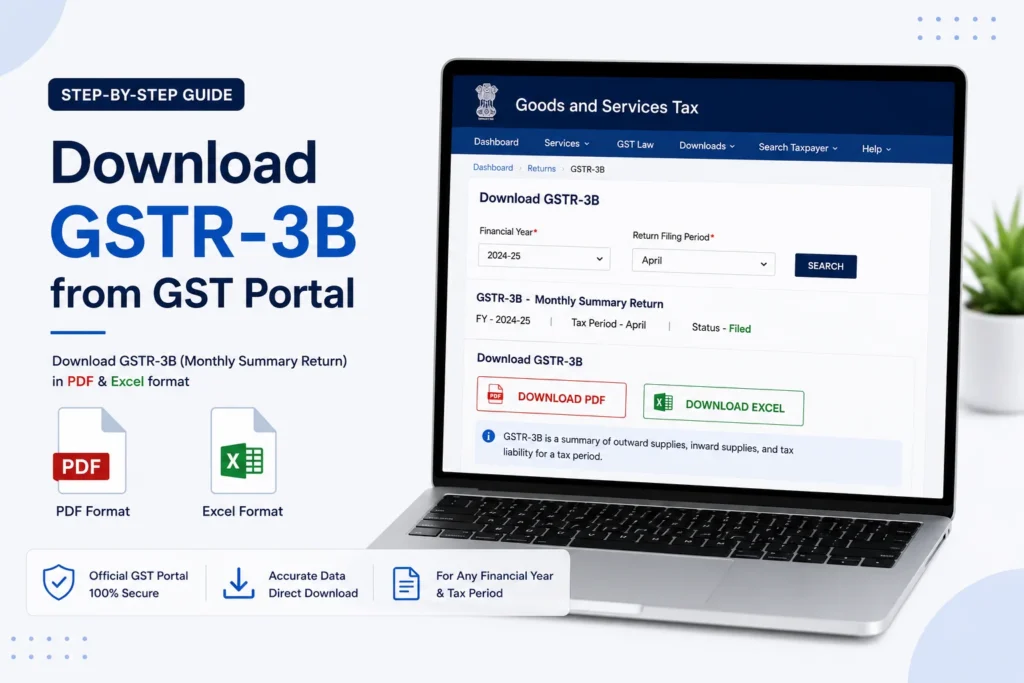
To download GSTR-3B from GST portal, log in, go to Services > Returns > Returns Dashboard, select the financial year and return period, and click the Download button on the GSTR-3B tile. You can also download it immediately after filing by clicking “Download Filed GSTR-3B” on the confirmation page.
Page Contents
What Is GSTR-3B and Why You Might Need to Download It
GSTR-3B is the monthly (or quarterly, for QRMP filers) summary return every regular GST-registered taxpayer must file. It covers outward supplies, tax liability, and the input tax credit (ITC) claimed for the period, even if there’s no business activity that month.
Downloading a copy after filing isn’t optional busywork. It matters for a few concrete reasons:
- Audit and assessment records. Tax officers can ask for a filed copy at any point, and having it on hand saves a scramble later.
- Cross-verification. Comparing your filed GSTR-3B against your own books helps catch mismatches before they turn into notices.
- Annual return prep. When you get to filing GSTR-9, you’ll need your monthly GSTR-3B figures on hand to reconcile against.
How to Download GSTR-3B from GST Portal (Step-by-Step)
Step 1: Log in to the GST portal
Go to www.gst.gov.in and log in with your registered username and password.
Step 2: Open the Returns Dashboard
Click Services > Returns > Returns Dashboard.
Step 3: Select the financial year and period
Choose the financial year and the specific month (or quarter, if you’re a QRMP filer) for which you want the return. Click Search.
Step 4: Download from the GSTR-3B tile
Once the filed returns for that period load, you’ll see a GSTR-3B tile with a status of “Filed.” Click DOWNLOAD under that tile to save the return to your device.
You can choose PDF or Excel format depending on what you need it for. PDF is generally what you’d hand to an auditor or keep for records; Excel is more useful if you want to pull the figures into a spreadsheet for reconciliation.
Alternative: Download Right After Filing
If you’re filing GSTR-3B right now and want a copy immediately, you don’t need to navigate back through the dashboard. After you complete the filing and see the success confirmation, there’s a “Download Filed GSTR-3B” button right on that screen. Clicking it gets you the same PDF without the extra navigation.
How to View or Download GSTR-3B Through “View Filed Returns”
There’s a second, slightly different path to the same document, useful if you want to browse across multiple return types or periods at once rather than searching one period at a time.
- Log in to the GST portal.
- Go to Services > Returns > View Filed Returns.
- Select the Financial Year, Return Filing Period, and Return Type (GSTR-3B) from the dropdowns.
- Click Search.
- Click View next to the return you want, then use the download option on that page to save a signed PDF.
Both paths land you on the same document. The Returns Dashboard route is faster if you already know the exact period you need; View Filed Returns is better if you’re scanning through several periods or return types in one sitting.
Either way, once you’ve located GSTR-3B in GST portal, the download button works the same regardless of which path got you there.
Downloading a Multi-Month or Annual GSTR-3B Summary
The GST portal doesn’t offer a single-click option to download a full year of GSTR-3B data at once. If you need an annual view, for example to prep for GSTR-9, you’ll need to:
- Download each month’s GSTR-3B individually using the steps above.
- Compile the figures into a single spreadsheet manually, or import them into accounting software that supports this.
Some third-party GST software providers offer a “multi-month GSTR-3B report” feature that automates this compilation by logging into the government portal on your behalf and pulling each month’s data in sequence. This can save time if you’re regularly reconciling a full year’s returns, but it isn’t a government-provided feature, so results still ultimately trace back to the same monthly downloads described above.
Common Issues When Downloading GSTR-3B
Wrong financial year or period selected. This is the most common cause of a blank search result. Double-check you’ve selected the correct year and month before assuming there’s a technical problem.
Return not yet filed. If the status shows “Submitted” but not “Filed,” the download option won’t be available yet. The return needs to be fully filed, not just submitted, before it can be downloaded.
Portal slowness during peak filing periods. The GST portal tends to slow down close to filing deadlines. If downloads are timing out, trying again during off-peak hours (early morning or late evening) usually helps.
Forgotten login credentials. Use the “Forgot Username” or “Forgot Password” options on the login page to recover access rather than creating a fresh account.
Frequently Asked Questions
How do I download GSTR-3B from the GST portal?
Log in, go to Services > Returns > Returns Dashboard, select the financial year and period, and click Download on the GSTR-3B tile once the return shows as Filed. This is the standard route for any GST 3B return download, whether you need it for a single month or want to check several periods in a row.
Can I download GSTR-3B in Excel format?
Yes. Both PDF and Excel formats are available for download alongside the filed return.
How do I download GSTR-3B for multiple months at once?
The GST portal doesn’t support bulk downloads. Each month’s GSTR-3B has to be downloaded individually through the Returns Dashboard, then compiled manually if you need an annual view.
What’s the difference between downloading GSTR-3B and downloading the GSTR-3B offline tool?
Downloading GSTR-3B gets you a copy of a return you’ve already filed. The GSTR-3B offline tool is a separate Excel-based utility used to prepare a return before filing, available under Downloads > Offline Tools on the portal. They’re not the same thing, and neither can substitute for the other.
Why can’t I find my GSTR-3B for a specific month?
Check that you’ve selected the correct financial year and period first, since this is the most common reason for an empty search result. If the correct period is selected and it’s still not showing, confirm the return was actually filed (not just saved or submitted) for that period.
Is there a deadline to download a filed GSTR-3B?
No, there’s no deadline. You can download a filed GSTR-3B at any time after filing, though it’s good practice to save a copy soon after filing for your records.
This article is for informational purposes only and is not investment or tax advice. Consult a qualified professional for decisions specific to your situation.