To calculate GST percentage in Excel, multiply the base price by the GST rate using a simple formula like =A2*18%, then add that amount back to the base price to get the final total. If your price already includes GST, use a slightly different formula to pull the tax back out.
Page Contents
GST Calculation Formula in Excel: The Basics
Before building a sheet, it helps to know the two core formulas everything else is built on.
- GST Amount = Original Price × (GST Rate ÷ 100)
- Final Price = Original Price + GST Amount
In Excel, if your base price is in cell A2 and the GST rate is in B2, the formulas look like this:
- GST Amount:
=A2*B2 - Final Price:
=A2+ (A2*B2)or the shorter version,=A2*(1+B2)
These two formulas cover most day-to-day GST calculation needs, whether you’re pricing a product, checking a vendor bill, or building an invoice sheet.
How to Add GST in Excel (Step by Step)
Here’s how to set this up from scratch, using a 18% GST example.
- Open a new Excel sheet and create three columns: Base Price, GST Rate, and Final Price.
- In the Base Price column (say A2), enter the price before tax, for example 1000.
- In the GST Rate column (B2), enter 18% (Excel will read this as 0.18).
- In the Final Price column (C2), enter the formula
=A2*(1+B2). - Press Enter. Excel will show 1180, which is the price after adding 18% GST.
If you’d rather see the GST amount separately before the total, add one more column:
- GST Amount (D2):
=A2*B2→ shows 180 - Final Price (C2):
=A2+D2→ shows 1180
This layout is useful when you need to show the tax component separately on an invoice, not just the final billed amount.
How to Add 18% GST in Excel Directly
If you already know you’re always working with 18%, you can skip the rate column and multiply directly:
- Final Price:
=A2*1.18 - GST Amount only:
=A2*0.18
This shortcut works the same way for other slabs. Just swap 1.18 for 1.05, 1.12, or 1.28 depending on the applicable rate.
GST Formula in Excel Sheet: Quick Reference Table
Rather than memorizing formulas, keep this table handy and adapt it to your cell references.
| What You Need | Formula (A2 = base/total, B2 = GST rate) |
|---|---|
| GST Amount (on base price) | =A2*B2 |
| Final Price (base + GST) | =A2*(1+B2) |
| Base Price (from GST-inclusive total) | =A2/(1+B2) |
| GST Amount (extracted from total) | =A2-(A2/(1+B2)) |
| CGST (half of total GST) | =(GST Amount)/2 |
| SGST (half of total GST) | =(GST Amount)/2 |
Note that B2 here is a decimal rate (0.18 for 18%). If you type the rate as a plain number like 18 instead of 18%, adjust the formula to divide by 100, for example =A2/(1+B2/100).
GST Calculation in Excel from a GST-Inclusive Price (Reverse Calculation)
Sometimes you already have the final price, and you need to work backward to find the base price and the tax amount. This is common when checking an MRP or a bill that already includes GST.
The formula is:
- Base Price = Total Price ÷ (1 + GST Rate)
- GST Amount = Total Price − Base Price
For example, if the total price is ₹1,180 and GST is 18%:
- Base Price:
=A2/1.18→ ₹1,000 - GST Amount:
=A2-(A2/1.18)→ ₹180
This reverse formula is one of the more commonly searched GST calculations, since businesses often need to extract the tax component from a bill they’ve already received rather than one they’re creating.
How to Calculate CGST and SGST Separately in Excel
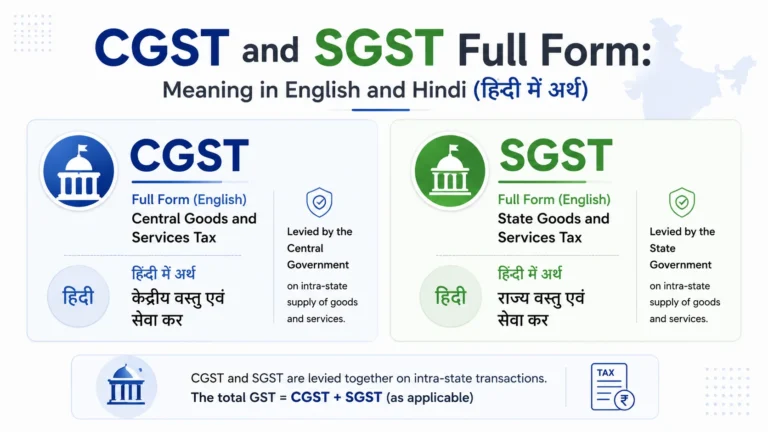
For sales within the same state, GST is split equally into CGST and SGST rather than charged as one combined rate. If your total GST works out to 18%, that means 9% CGST and 9% SGST.
- Calculate the total GST amount as usual:
=A2*B2 - Divide the result by 2 for CGST:
=C2/2 - Divide the result by 2 again for SGST:
=C2/2
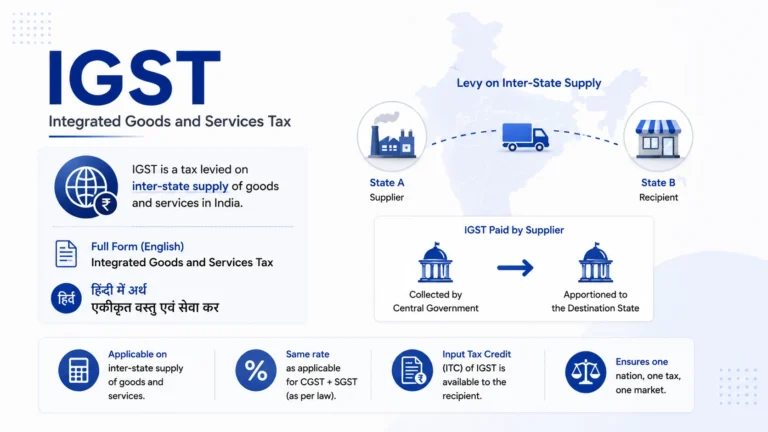
For inter-state sales, you don’t split the tax. The full GST amount is charged as IGST instead, so that single column can simply mirror your total GST amount.
GST Calculation Worksheet Format (Ready to Use)
If you’re setting up a working sheet rather than a one-off calculation, structure it with these columns:
| Item | Base Price (₹) | GST Rate (%) | GST Amount (₹) | CGST (₹) | SGST (₹) | Final Price (₹) |
|---|---|---|---|---|---|---|
| Product A | 1000 | 18% | =B2*C2 | =D2/2 | =D2/2 | =B2+D2 |
| Product B | 1500 | 12% | =B3*C3 | =D3/2 | =D3/2 | =B3+D3 |
Once this format is set up in row 2, you can drag the formulas down for every row below it, and the sheet will calculate GST for each new item automatically. This is essentially what most downloadable “GST calculation worksheet” templates are built around, so recreating it yourself takes only a few minutes.
If you’d prefer not to build this from scratch, you can also look for a ready GST calculator download for PC, which usually offers the same formula logic in a pre-formatted spreadsheet you can plug numbers into directly.
Download the free GST calculation worksheet (Excel) – pre-built with forward and reverse GST formulas, ready to calculate.
Common Mistakes to Avoid
Mixing up forward and reverse formulas. Multiplying an already GST-inclusive price by the rate again, instead of dividing it out, is one of the most frequent errors and leads to inflated GST figures.
Entering rate as a whole number instead of a percentage. If B2 contains 18 instead of 18%, formulas like =A2*(1+B2) will break unless you divide by 100 separately.
Rounding too early. Letting Excel round intermediate values (like the base price in a reverse calculation) before the final GST figure can cause small mismatches with what’s shown on an actual tax invoice.
Forgetting to update rates. If a product’s GST slab changes, formulas referencing a fixed rate column need to be updated in every row, not just the first one.
Frequently Asked Questions
How do I calculate GST percentage in Excel?
Multiply the base price by the GST rate using =A2*B2 for the tax amount, or =A2*(1+B2) to get the final price including GST directly.
How do I add 18% GST in Excel?
Use =A2*1.18 to get the final price with 18% GST included, or =A2*0.18 if you only want the tax amount separately.
How do I calculate GST in Excel in India specifically?
The formulas are the same regardless of country; what changes is the applicable rate. In India, use the relevant slab (5%, 12%, 18%, or 28%) in place of the generic rate in the formula. You can look up the exact rate for your HSN or SAC code using the CBIC GST rate finder before entering it into your sheet.
How do I remove GST from a total amount in Excel?
Divide the total by (1 + GST rate). For an 18% inclusive price, use =A2/1.18 to get the base price, and subtract that from the total to get the GST amount.
How do I split GST into CGST and SGST in Excel?
Calculate the total GST amount first, then divide it by 2 for each: =GST Amount/2 for both CGST and SGST, since intra-state GST is split equally between the two.
Is there a downloadable GST calculation worksheet in Excel format?
Yes, most GST calculator tools and finance blogs offer free downloadable Excel worksheets. You can also build your own in a few minutes using the column format and formulas shown above.
Can I use a GST calculator instead of building an Excel sheet?
Yes. A downloadable GST calculator for PC or an online calculator works well for one-off calculations. Excel is more useful when you’re tracking multiple items, invoices, or need to keep a record of the calculations.
This article is for informational purposes only and is not investment or tax advice. Consult a qualified professional for decisions specific to your situation.
Read More: How to Calculate GST Percentage in Excel (With Formulas & Free Sheet Format)