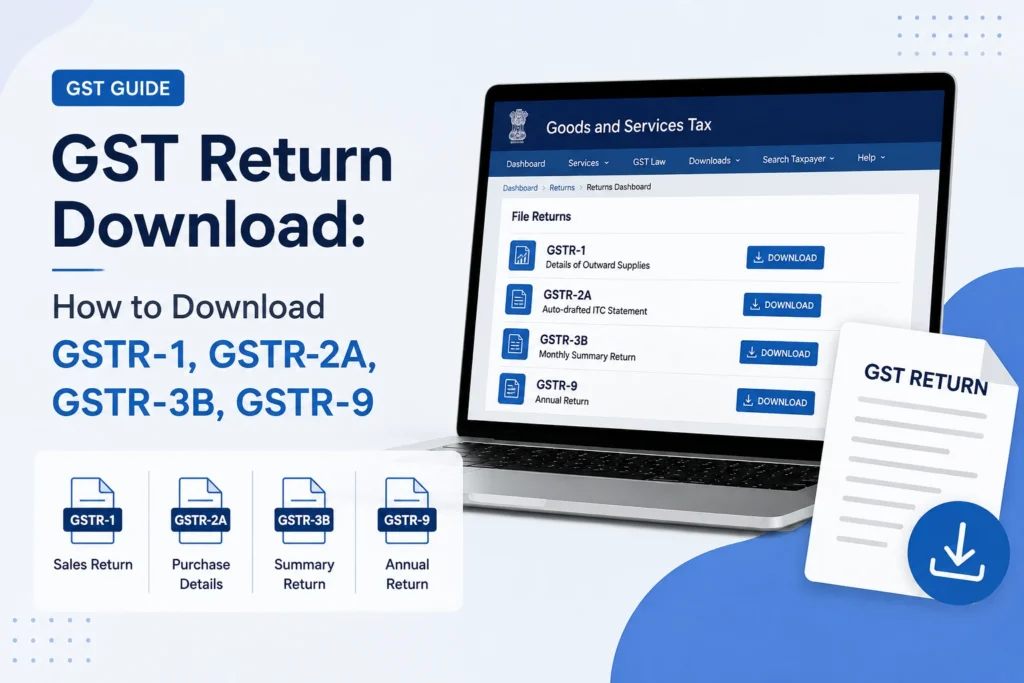
GST return download means retrieving a copy of a return you’ve already filed (like GSTR-1, GSTR-3B, or GSTR-9) from the GST portal, usually in PDF or Excel format, for your records, audits, or reconciliation. The exact steps depend on which return you need, since each one lives under a slightly different section of the portal.
Page Contents
What “GST Return Download” Actually Covers
“GST return” isn’t one single document. It’s an umbrella term for several different forms, each serving a different purpose and filed at a different frequency. Before diving into download steps, it helps to know which one you’re actually after.
| Return | What It Covers | Filed By | Frequency |
|---|---|---|---|
| GSTR-1 | Outward supplies (sales) | Regular taxpayers | Monthly or quarterly |
| GSTR-2A | Auto-drafted inward supplies (purchases), based on supplier filings | Auto-generated, view-only | Dynamic, updates continuously |
| GSTR-3B | Summary of outward/inward supplies, tax liability, and ITC | Regular taxpayers | Monthly or quarterly |
| GSTR-9 | Annual return consolidating the year’s GSTR-1 and GSTR-3B data | Regular taxpayers (turnover-based exceptions apply) | Annually |
| HSN Summary | HSN/SAC-wise breakup of outward supplies | Part of GSTR-1 | Monthly or quarterly |
If you already know exactly which return you need, jump straight to the dedicated guide below. If not, the quick descriptions above should point you in the right direction.
Two Different Things People Mean by “Download a Return”
This is where a lot of confusion happens, since two very different actions get lumped under the same phrase.
- Downloading a filed return. This is retrieving a copy of a return you’ve already submitted, for record-keeping or audit purposes. You do this through the Returns Dashboard or View Filed Returns section.
- Downloading the offline tool. This is a separate Excel-based utility used to prepare a return before filing it, available under Downloads > Offline Tools. It has nothing to do with retrieving something you’ve already filed.
If you’re trying to get a copy of something you’ve submitted, you want the first. If you’re preparing a return you haven’t filed yet, especially useful for large volumes of invoices or unreliable internet, you want the second.
How to Download a Filed GST Return (General Steps)
The core process is the same across most return types, with small variations covered in each dedicated guide below.
- Log in to the GST portal with your registered credentials.
- Go to Services > Returns > Returns Dashboard (or View Filed Returns if you want to browse across multiple periods at once).
- Select the Financial Year and Return Filing Period (month or quarter).
- Click Search.
- Find the relevant return tile and click Download or View, then choose your format (PDF, Excel, or JSON depending on the return).
Detailed Download Guide for Each Return Type
GSTR-1 (Outward Supplies)
GSTR-1 covers your outward supplies (sales) for the period. It can be downloaded as a filed PDF for records, or prepared and downloaded through the offline tool before filing.
GSTR-2A (Auto-Drafted Inward Supplies)
GSTR-2A is a read-only, auto-generated statement of your inward supplies based on what your suppliers have filed. It’s commonly downloaded for ITC reconciliation.
GSTR-3B (Monthly Summary Return)
GSTR-3B is the monthly summary return covering tax liability and ITC claimed. It’s one of the most frequently downloaded returns, both for audits and for cross-checking against your books.
GSTR-9 (Annual Return)
GSTR-9 is the annual return, filed once a year and consolidating your GSTR-1 and GSTR-3B data for the full financial year.
HSN Summary (Part of GSTR-1)
The HSN-wise summary of outward supplies is part of your GSTR-1 filing, and can be downloaded separately if you need just the HSN/SAC-level breakup.
Why the Portal Doesn’t Offer a Single Bulk Download
A common frustration is discovering there’s no single button to download an entire year’s worth of returns in one go. The GST portal genuinely doesn’t offer this. Each return, for each period, has to be downloaded individually.
If you’re compiling a full year (for GSTR-9 prep or an internal audit, for example), the practical approach is:
- Download each month’s return individually using the steps in the relevant guide above.
- Compile the figures into a single spreadsheet.
Some third-party GST software platforms offer a “multi-month” or “annual” download feature that automates this by logging into the government portal and pulling each period’s data in sequence. This is a convenience layer built on top of the same monthly downloads, not a separate government feature.
Frequently Asked Questions
How to download GST return from the portal?
Log in to the GST portal, go to Services > Returns > Returns Dashboard, select the financial year and period, and download the relevant return from its tile. Exact steps vary slightly by return type, so if you’re wondering specifically how to download GST return copies like GSTR-1 or GSTR-3B, use the dedicated guides linked above for the precise steps.
Can I download all my GST returns at once?
No. The GST portal requires you to download each return, for each period, individually. There’s no native bulk or full-year download option.
What’s the difference between GSTR-2A and GSTR-2B?
GSTR-2A is dynamic and updates continuously as suppliers file or amend their returns. GSTR-2B is a static, monthly snapshot generated once and meant specifically for ITC reporting in GSTR-3B.
Do I need to download my GST returns regularly?
It’s good practice, especially after filing each period’s return, so you have records on hand for audits, reconciliation, or reference without needing to search the portal later.
Where do I find the GST offline tools?
Go to the Downloads section on the GST portal home page and select Offline Tools, then choose the specific return type you need (GSTR-1, GSTR-3B, GSTR-9, etc.).
This article is for informational purposes only and is not investment or tax advice. Consult a qualified professional for decisions specific to your situation.