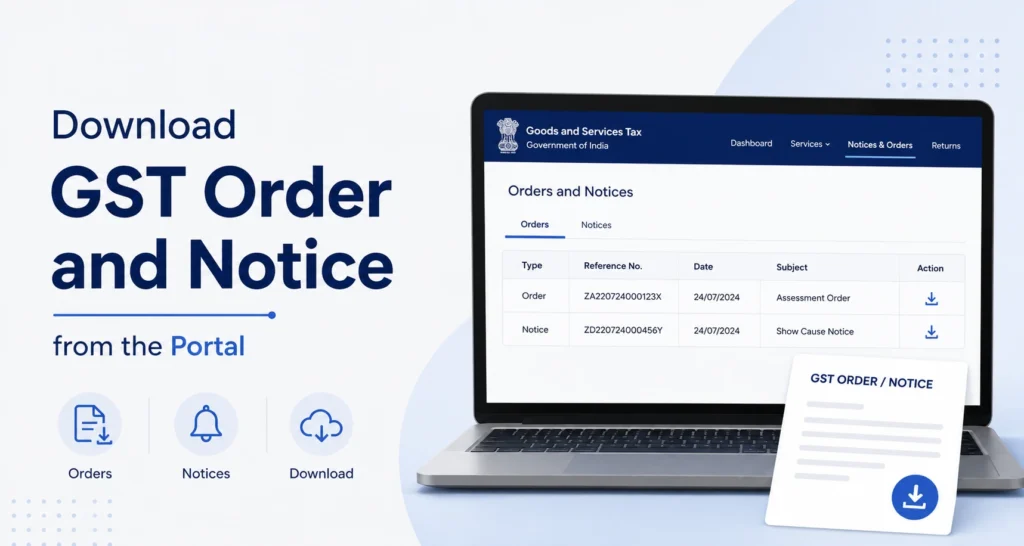
You can download a GST order or notice by logging into the GST portal and going to Services > User Services > View Notices and Orders, where all communications issued by a tax officer in the last year are listed with a download option. This single section now covers what used to be split across two tabs, since the GST portal has merged “Additional Notices/Orders” into “Notices and Orders.”
Page Contents
How to Download GST Order from the Portal
Here’s the step-by-step process for a gst order download.
- Log in to the GST portal at www.gst.gov.in using your GSTIN and password.
- Go to Services > User Services > View Notices and Orders. You can also reach this directly from a “View Notices and Orders” button on your dashboard, if it’s shown there.
- Browse the list. All notices and orders issued to you are displayed in descending chronological order, covering the last one year by default. You can filter by an issuance date range, or by Notice/Demand Order ID, type, description, or due date.
- Click View next to the relevant entry to open the Case Details screen for that particular notice or order.
- Go to the ORDERS tab on the Case Details screen and download the document from the Attachments column.
This single screen now covers orders and notices relating to registration (new registration, amendment, cancellation, revocation), returns (including GSTR-3A defaulter notices and DRC-01B/DRC-01C), Advance Ruling, Appeal, Assessment or Adjudication, Audit, Enforcement, Prosecution and Compounding, Recovery, LUT, and the GST Amnesty Scheme (waiver applications), among other modules.
A Note on the “Additional Notices/Orders” Tab
If you’ve read an older guide that tells you to check a separate “View Additional Notices/Orders” tab, that instruction is now outdated. The GST portal has merged this tab into the main Notices and Orders screen, and a scrolling message on the portal itself confirms this. Every notice and order issued from any GST module now shows up in one place, so you no longer need to check two different sections to be sure you haven’t missed something.
If you’re specifically chasing a refund-related notice or order, it still won’t appear in this main list. Refund-related communications are shown under the Case Details page of the specific ARN instead. Go to Services > User Services > My Applications, select Application Type as Refunds, and open the relevant ARN to find the notice or order tied to it.
How to Download GST Notice from the Portal
The steps to download a notice are the same as for an order, since both live in the same section. On the Case Details screen, the NOTICES tab is selected by default and lists any Reminder, Adjournment, or Show Cause Notice issued to you. Click the document name under Attachments to download it.
A few notice types worth knowing about, since they trigger a specific response window:
- Show Cause Notice (SCN) – requires a reply within the timeline stated on the notice, usually before a corresponding order is passed.
- Reminder or Adjournment Notice – informational, often extending a deadline or repeating an earlier request.
- GSTR-3A notice – issued for non-filing of returns, including for taxpayers under the Composition Scheme.
If a reply is due, the portal usually gives you a Reply option directly from the Case Details screen rather than requiring a separate application.
How to Download GST Rejection Order
“Rejection order” on the GST portal most commonly refers to one of two different things, depending on what stage you’re at. Here’s how to download each.
GST Registration Rejection Order (Form GST REG-05)
If you applied for GST registration and it was rejected, here’s why that typically happens: the tax officer issues a notice seeking clarification on your application (Form GST REG-01), and if you don’t respond, or your response isn’t accepted, the officer passes a rejection order in Form GST REG-05, stating the reason for rejection.
To download it:
- Log in to the GST portal using your credentials. If your registration itself was rejected and you don’t have login access yet, use your TRN (Temporary Reference Number) instead, the one you received by email and SMS after submitting Part A of the registration form. Go to Services > Registration > New Registration, and log in using your TRN rather than a GSTIN.
- Go to Services > User Services > View Notices and Orders (if logged in normally), or check the application status page directly after TRN login, where the status will show as something like “Pending for Clarification” or “Rejected.”
- Click on the relevant entry or status link to open the Case Details or application status screen.
- Download the order from the Attachments or Order Documents section.
You can also check the specific reason for rejection using your ARN: go to Services > Registration > Track Application Status, enter your ARN or TRN, and the officer’s remarks or the linked rejection order will be shown there.
If your application was rejected, you’re not without options. You can file a fresh application (Form GST REG-01) if the issue was fixable, or file an appeal against the rejection using Form GST APL-01 within three months of the rejection order, along with physical copies of your supporting documents submitted to the appellate authority within seven days of filing the online appeal.
Waiver Application Rejection Order (Form SPL-07)
A second, less common context: if you applied for a waiver of interest and penalty under the GST Amnesty Scheme (Section 128A) using Form SPL-01 or SPL-02, the jurisdictional officer either approves it with an Acceptance Order (Form SPL-05) or rejects it with a Rejection Order (Form SPL-07).
- Log in to the GST portal and go to Services > User Services > View Notices and Orders.
- Locate the SPL-07 entry for your waiver application and click View.
- Download the order from the ORDERS tab in the Case Details screen.
If your waiver application was rejected and you disagree with the outcome, the GST portal allows you to file an appeal against an SPL-07 rejection order:
- Go to Services > User Services > My Application.
- Select Application Type as Appeal to Appellate Authority and choose Form APL-01.
- Under Order Type, select Waiver Application Rejection Order and fill in the relevant details before submitting.
Keep in mind, once an appeal is filed against an SPL-07 order, the portal doesn’t currently allow it to be withdrawn, so it’s worth reviewing the rejection reason carefully before deciding to appeal.
Why You Might Not See a Recent Notice or Order
A few reasons a document might not show up when you expect it to:
- It’s older than a year. The default Notices and Orders screen only shows the last one year of activity. Older documents may need a different retrieval route, or a request to your jurisdictional officer.
- It’s tied to a refund ARN. Refund-specific communications sit under My Applications, not the general notices screen.
- You’re not logged in the right way. If you’re dealing with a registration-stage notice (like a Show Cause Notice before your GSTIN even exists), you need to log in using your TRN, not a GSTIN and password, since you won’t have full portal access yet.
- The system hasn’t updated yet. The portal sends an SMS and email the moment a tax officer issues any communication, so if you got that alert but don’t see the document yet, give it a little time and check again.
Downloading a Notice Before You Have a GSTIN
If you’re mid-way through GST registration and received a Show Cause Notice asking for clarification, you won’t be able to log in normally, since you don’t have a GSTIN yet. Instead:
- Go to the GST portal and select Services > Registration > New Registration.
- Choose to log in using your Temporary Reference Number (TRN) rather than username and password.
- Enter the TRN and captcha, then verify with the OTP sent to your email and phone.
- Once logged in, you’ll see your application status. If it shows Pending for Clarification, click on that status to download the notice directly, or navigate to View Notices and Orders and locate it by SCN reference number if needed.
What to Check Once You’ve Downloaded It
Before acting on any order or notice, confirm:
- The GSTIN matches your business.
- The Case ID or ARN referenced is one you recognise, especially if you handle GST for multiple entities.
- The response deadline, if any, is clearly noted, and calculate it from the date of issue rather than the date you happened to download it.
- The module (Assessment, Audit, Enforcement, Recovery, LUT, Amnesty Waiver, etc.) matches what you were expecting, since the wrong module can mean you’re looking at the wrong case entirely.
If anything is unclear or the stakes are significant (a demand order, a rejection with financial impact), it’s worth having a GST practitioner review it before you respond or let a deadline pass.
Frequently Asked Questions
How do I download a GST order from the portal?
Log in, go to Services > User Services > View Notices and Orders, click View next to the relevant entry, then download the document from the ORDERS tab under Attachments.
How do I download a GST notice from the portal?
Same section as orders. Go to View Notices and Orders, open the entry, and the NOTICES tab (selected by default) lists all notices with a download link under Attachments.
Where do I download a GST rejection order?
It depends on the stage. If your GST registration application was rejected (Form GST REG-05), log in with your TRN if you don’t have a GSTIN yet, or check Services > Registration > Track Application Status using your ARN. If it’s a waiver application rejection under the Amnesty Scheme (Form SPL-07), it’s available under Services > User Services > View Notices and Orders, same as any other order.
Why can’t I find my notice or order on the portal?
Check whether it’s refund-related (which sits under My Applications rather than the main Notices and Orders list), whether it’s older than the one-year window shown by default, or whether you need to log in using your TRN instead of a GSTIN, if you’re at the registration stage.
Is “View Additional Notices/Orders” still a separate section?
No. The GST portal has merged this tab into the main “Notices and Orders” screen. All notices and orders issued from any GST module now appear in one combined list, so older guidance pointing to two separate tabs is out of date.
Can I download a Show Cause Notice before I have a GSTIN?
Yes. If you’re still in the registration process and don’t have login credentials yet, use your Temporary Reference Number (TRN) to log in via Services > Registration > New Registration, then download the notice from your application status page.
Can I appeal a GST rejection order?
Yes, in both common scenarios. For a registration rejection (Form GST REG-05), file Form GST APL-01 within three months of the rejection order, and submit physical copies of supporting documents to the appellate authority within seven days of the online filing. For an SPL-07 waiver rejection under the Amnesty Scheme, file Form APL-01 under Services > User Services > My Application, selecting Appeal to Appellate Authority. Note that an SPL-07 appeal cannot be withdrawn once filed.
Can I reply to a notice directly from the GST portal?
Yes. Most notices that require a response have a Reply option available from the Case Details screen, so you don’t need a separate application for routine replies.
How long are GST notices and orders available for download?
The main View Notices and Orders screen shows the last one year by default. For anything older, you may need to check with your jurisdictional GST officer.
Is there a fee to download a GST order or notice?
No. Viewing and downloading any notice or order issued to you on the GST portal is free.
This article is for informational purposes only and is not investment or tax advice. Consult a qualified professional for decisions specific to your situation.